Setup guide
Connect Gmail with an app password
An app password is a separate 16-letter password that lets InboxDefender360 check one Gmail inbox for scams. Your real Gmail password stays private, and you can switch the app password off at any time.
Before you start
- It takes about 5 minutes. A computer is easiest, but a phone works too.
- Have the Gmail owner's phone nearby. Google may text a code or ask them to tap "Yes" on their phone.
- If you're setting this up for a parent, do it together. Signing in to someone else's account without them isn't okay, and they'll need to approve it anyway.
- Keep the InboxDefender360 app open in another tab, on the "Turn on Email Shield" page, so you can paste the code straight in.
Step 1: Turn on 2-Step Verification
Google only lets you make app passwords after 2-Step Verification is on. Already on? Skip to step 2.
- Go to myaccount.google.com/security and sign in to the Gmail account you want to protect.
- Under How you sign in to Google, choose 2-Step Verification.
- Choose Turn on 2-Step Verification and follow Google's prompts. Usually that means adding a phone number and typing the code Google texts to it.
Step 2: Make the app password
- Go to myaccount.google.com/apppasswords. Google may ask for the Gmail password again. That's normal.
- In the App name box, type InboxDefender360, so you'll recognize it later.
- Choose Create. Google shows a 16-letter code in four groups of four, like the example below.
- Copy the code, or write it down carefully. Google shows it only once. Don't close the window until it's pasted into InboxDefender360.
Example only. Yours will be different.
abcd efgh ijkl mnop
Step 3: Paste it into InboxDefender360
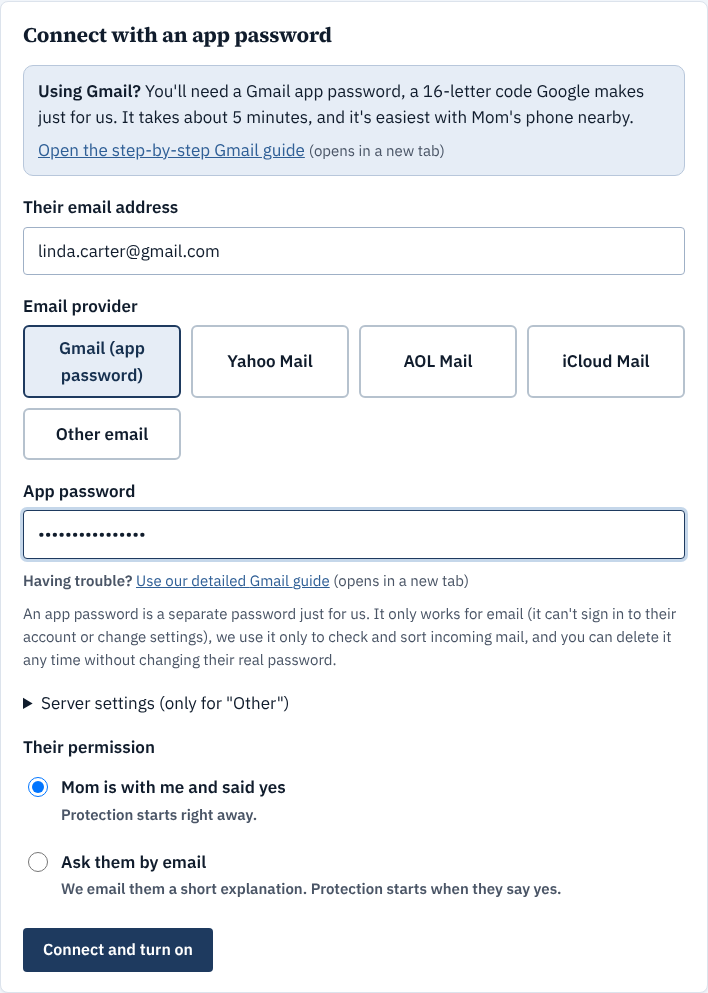
- In the InboxDefender360 app, open the person's page and choose Turn on Email Shield.
- Type their Gmail address and choose Gmail (app password).
- Paste the 16-letter code into the App password box. Don't use their normal Gmail password here. It won't work.
- Choose how they give permission, then Connect and turn on. We test the connection right away, and the first scam check runs within a minute.
- Back on Google's page, choose Done.
We will never ask for this code by phone, text or email. Type it only into the InboxDefender360 app at app.inboxdefender360.com. If anyone calls asking you to read out a Google code, hang up. That's a scam.
If something goes wrong
Google says "The setting you are looking for is not available for your account"
This usually means one of these:
- 2-Step Verification isn't on yet. Go back to step 1.
- 2-Step Verification uses only security keys. Add a phone number or the Google prompt as another way to sign in, then try again.
- It's a work or school Google account. The organization's IT team decides whether app passwords are allowed.
- The account uses Google's Advanced Protection Program, which doesn't allow app passwords.
InboxDefender360 says the app password "wasn't accepted"
- Check that you pasted the 16-letter app password, not the normal Gmail password.
- Check the email address for typos. It must be the same Gmail account the app password was made in.
- If you're not sure the code was copied correctly, make a new one. Remove the old one on the same Google page so it isn't left lying around.
I closed the window before copying the code
No problem. Make a new app password the same way. You can remove the unused one from the list on the App passwords page.
When protection stops working
Google deletes every app password when the Google account's password is changed. It's a safety feature, and it's the most common reason protection stops.
If that happens, InboxDefender360 notices on its next check, usually within a minute. It stops trying, so the account isn't locked, and it tells the family by email, and by text or phone notification if you turned those on. We remind you again over the following days.
To fix it, make a new app password (step 2 above) and paste it in the app under the inbox's Settings, then Connection. Protection starts again straight away. If an inbox stays disconnected for 30 days, we delete what we stored about it, and you'd set it up again from the start.
Is an app password safe?
- It only works for email. It can't be used to sign in to the Google account or to change the password, security settings or recovery options. InboxDefender360 uses it only to check and sort incoming mail, never to send email as the account owner.
- The real Gmail password is never shared with us.
- We store the app password encrypted.
- You're always in control. Remove "InboxDefender360" on the App passwords page and our access stops immediately. Removing the inbox in our app deletes everything we stored about it.
Google recommends app passwords only when an app can't use "Sign in with Google." One-click Google sign-in for InboxDefender360 is on our list. Until then, the app password is how Gmail connects. For more, see Google's help page on signing in with app passwords.
Stuck? We'll walk you through it.
Email support@inboxdefender360.com or use our contact form. Tell us what you see on the screen, but never send us the app password itself.